

Libraries
Each project has a library: files shared with everyone who can open the project, such as .sdr files, design documents and scenes. Sodero Assets holds the robots, environments and documents that Sodero publishes.
| Library | Holds | Who sees it | Who adds, exports and deletes files |
|---|---|---|---|
| A project's library | Files shared with one project | Everyone with access to the project | The workspace's owner and admins, and members when Members can manage the Library is on |
| Sodero Assets | Robots, environments and documents published by Sodero | Everyone | Nobody: it is read-only |
The Import file dialog and the Station's Load YAML dialog call a project's library Project Library. The dialog that uploads a document into a Station node calls it Workspace Library.
1. Open a Project's Library
- Click Library in the left navigation bar. The Library window lists the projects you can open in the current workspace; Search projects… filters them.
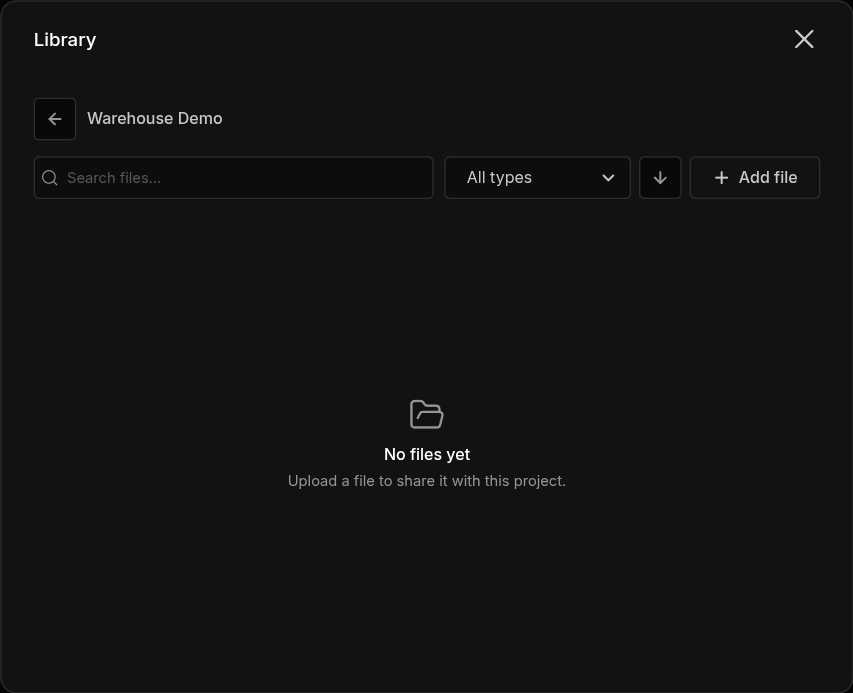
- Click a project. Its files are listed with their Name, Type, Size and the date they were Added. An
.sdrfile shows what it holds: Robot System or Robot World. - To find a file, use Search files…, the type filter (All types) and the sort button (newest or oldest first). The back arrow returns to the list of projects.
A project whose library is empty shows Upload a file to share it with this project.
Add file, and the Export and Delete buttons of each file, are shown to the workspace's owner and admins, and to members when the owner has turned on Members can manage the Library (Change Workspace Settings). Export saves a copy of the file on your computer.
In a Station, Libraries › Project Library in the Station menu (the Sodero mark at the top left) opens the library of the Station's project.
2. Add Files
- Open the project's library and click Add file.
- Drag a file onto the dialog, or click Choose file.
- Click Add file. The portal confirms Added NAME.
A file can be up to 2 GiB.
3. Use Library Files
| File | Where you use it |
|---|---|
.sdr |
Import on the project page, on the Project Library tab, creates a Robot System or Robot World from it (Import an .sdr File) |
Gateway and robot documents (.gw, .sdd, .sddm, .sdda), camera settings, map bundles |
In the Station, when you upload a node's document (Documents and Settings) |
Graph files (.yaml) |
In the Station, with Load YAML (Load and Export the Graph) |
Scenes and assets (.usd, .usda, .usdc) |
In Studio, to build a World (Studio) |
4. Delete Library Files
Click the file's Delete button.
Deleting a library file removes it at once; it does not go to Trash. Export a copy first if you may need the file again.
5. Sodero Assets
Sodero Assets is the content that Sodero publishes for everyone: robots, grounds, lighting and sky images for Studio, and robot and gateway documents for Manipulator, Mobile and Legged robots in the Station.
Sodero Assets are read-only, and you can view, edit and simulate them only in Sodero. A World that uses them keeps them in Sodero: its local copy and its duplicates leave them out. An official Sodero World cannot be downloaded or duplicated.
6. Storage Limits
Your workspace's plan limits how much the project libraries can hold. Billing & Usage shows the Project libraries and Workspace storage meters (Billing and Usage). A file that does not fit is refused with a message that names the limit, such as Not enough room in the project libraries: …: delete files you no longer need, or contact Sodero.