

Gateway Designer
Every actuator gateway runs from a gateway document (.gw): the hardware type, the list of actuators, each actuator's motor and drive parameters, and the fieldbus settings. Stellar Gateway Designer, the part of Stellar Designer for .gw files, creates and edits these documents. It opens from an actuator gateway node on the Station.
This page covers what all gateway documents share. The settings of each hardware type follow on Simulation Gateway and EtherCAT Gateway.
1. Open the Gateway Designer
- Select an actuator gateway node on the Station.
- Click Edit Stellar Gateway Designer in the DEFINITION section.
The Gateway Designer opens in a new tab with the node's document. Edits are saved back to the node automatically. Stop the gateway before you edit; the Station refuses saves while it runs (Gateway '…' is running — stop it in the Station, then save again.) and while its test console is open (Gateway '…' has a test console open — stop the test in the Station, then save again.).
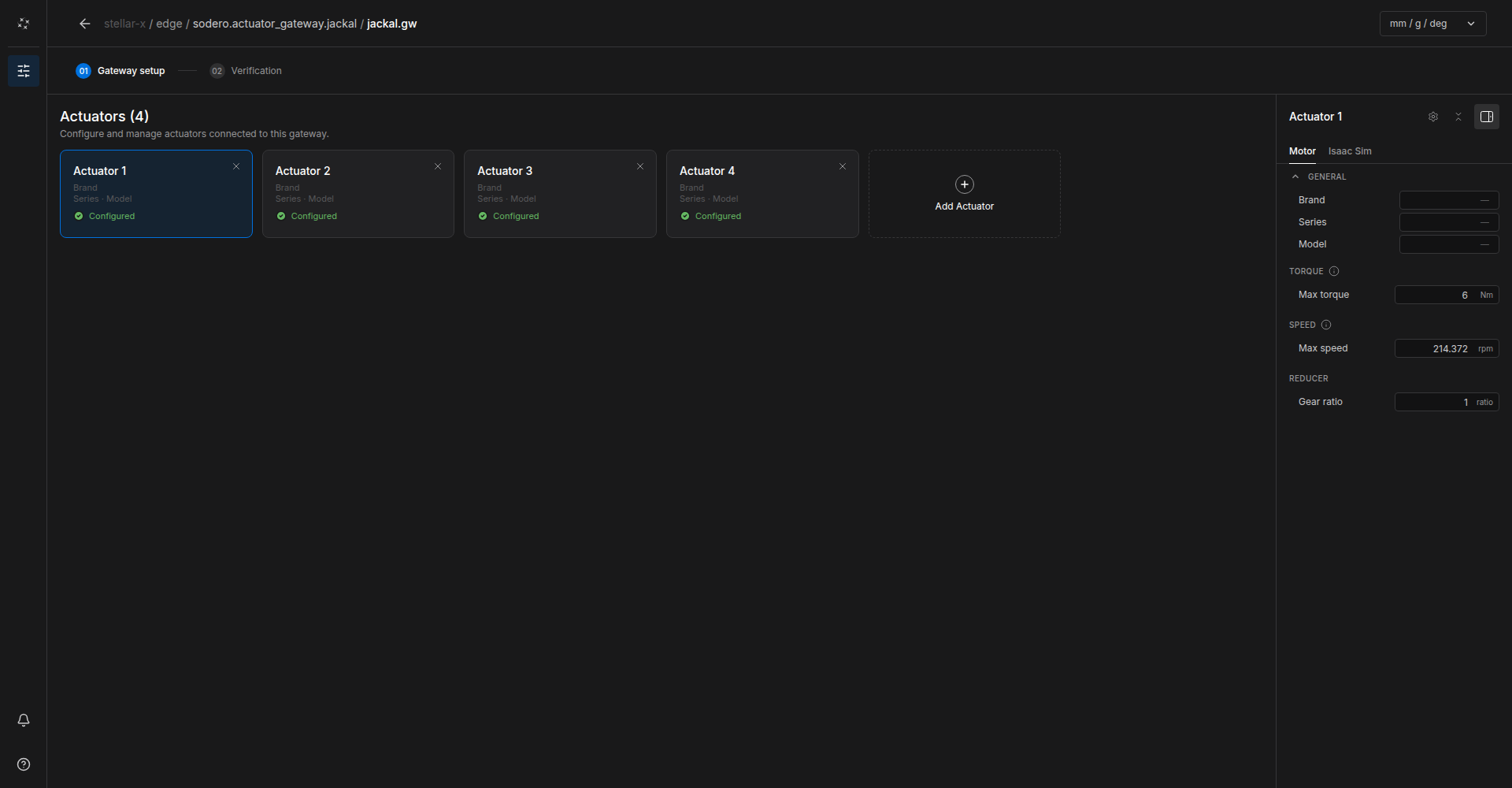
| Area | Contents |
|---|---|
| Breadcrumb | Where the document belongs: device / Station / node / file. The arrow returns to the Station. |
| Steps | 01 Gateway setup (actuators and their parameters) and 02 Verification |
| Actuators (N) | One card per actuator, in index order, with its brand, model and status (Configured / Not configured). Add Actuator adds one; × removes one. |
| Actuator panel | The parameters of the selected actuator, in tabs: Motor and a tab for the hardware type (EtherCAT or Isaac Sim) |
| Units | mm / g / deg or m / kg / radian for display |
2. Choose the Hardware Type
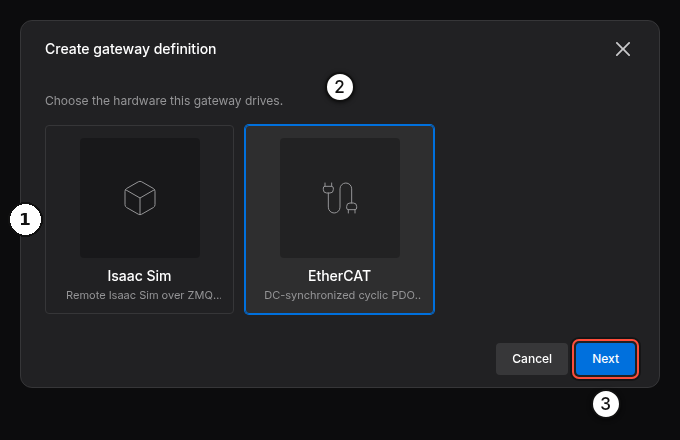
A new gateway node starts with an empty document. When you open it, the Gateway Designer asks for the hardware type:
| Type | Use |
|---|---|
| Isaac Sim ① | A robot in NVIDIA Isaac Sim (Simulation Gateway) |
| EtherCAT ② | CiA 402 servo drives on the EtherCAT port (EtherCAT Gateway) |
Select the type and click Next ③, then Create.
To change the type of an existing gateway, click the Stellar mark at the top left and choose Definition › Replace definition. Pick the new type and click Next › Replace. Existing actuators keep their motor settings and receive the new type's hardware settings; the previous type's hardware settings are removed. This cannot be undone.
3. Add and Configure Actuators
- Click Add Actuator once per motor. Actuator 1 is index 0, actuator 2 is index 1, and so on.
- Select an actuator card. Fill in the Motor tab: pick the motor from the catalog (Brand › Series › Model) or enter its values.
- Fill in the tab of the hardware type: EtherCAT (identification, SDOs, PDOs) or Isaac Sim (DOF offset).
Motor Parameters
Every field of the Motor tab is described in EtherCAT Gateway › Motor Tab. For simulation gateways the Motor tab shows only Max torque, Max speed and Gear ratio: the gateway limits torque commands to Max torque × Gear ratio and velocity commands to Max speed ÷ Gear ratio at the joint.
4. Verify and Export
Open 02 Verification and click Verify. The Gateway Designer checks the hardware type, the actuator list, the motor parameters (for EtherCAT also the encoder resolution) and the configuration files.
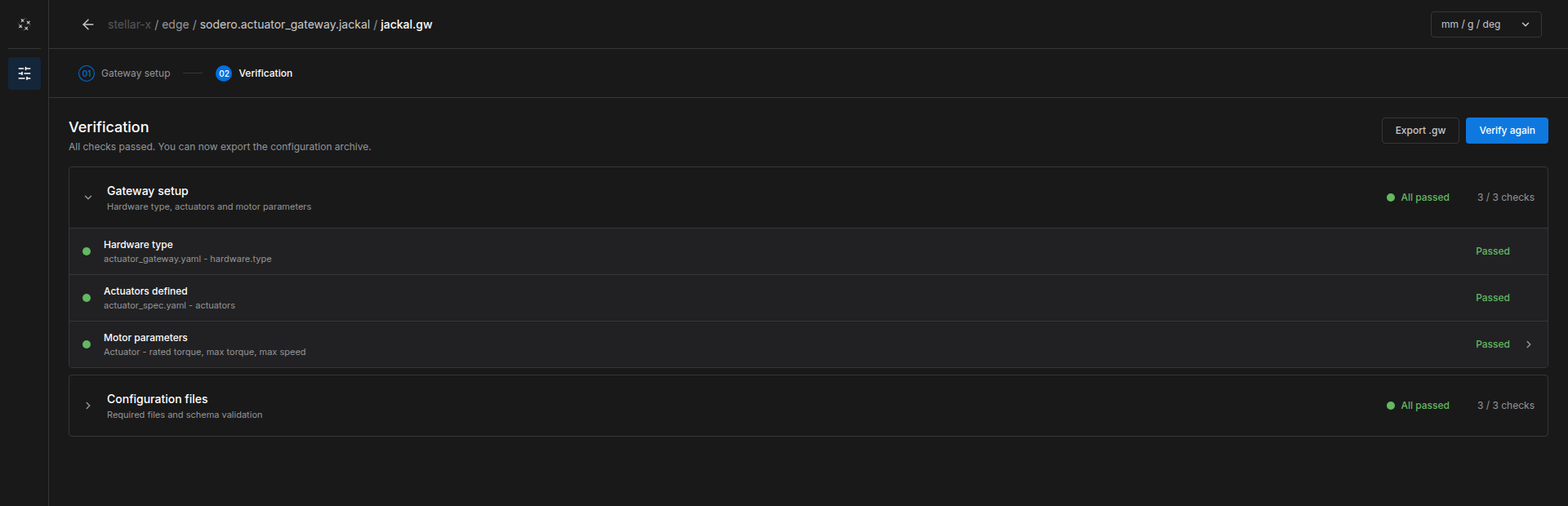
Errors (for example a parameter that must be positive) must be fixed; warnings are advisory. Then start the gateway from the Station.
When all checks pass, Export .gw downloads the document as a .gw file, which you can import into another gateway node (Import .gw).
5. Simulation Gateways
For Isaac Sim gateways, the actuator panel has an Isaac Sim tab with one setting:
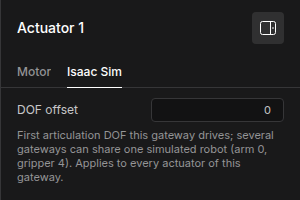
DOF offset is the first joint of the Isaac Sim articulation that this gateway drives, counted from 0 in actuator order. It applies to every actuator of the gateway: the Isaac Sim tab of each actuator shows the same value. Leave it at 0 when one gateway drives the whole robot.
Several gateways can share one simulated robot. For an arm with four joints and a gripper with two, as in the hint below the field (arm 0, gripper 4):
| Gateway | DOF offset | Drives |
|---|---|---|
| Arm | 0 | Joints 1–4 |
| Gripper | 4 | Joints 5–6 |
The robot's name in the scene (Robot name) and the address of the Isaac Sim computer (Sim host) are set on the Station node, not in the document (Simulation Gateway).
Next: Simulation Gateway for a robot in Isaac Sim, or EtherCAT Gateway for real drives.