

Install Isaac Bridge
Isaac Bridge is the Isaac Sim extension that connects Isaac Sim to the gateways of Stellar Station. Install it once on the computer that runs Isaac Sim.
1. Download the Extension
The source of Isaac Bridge is published on GitHub. Download release v1.0.0, the version this documentation is verified with (Compatibility):
Or download the source ZIP file of release v1.0.0 from the repository's Releases page, extract it, and rename the extracted folder isaac_bridge-1.0.0 to isaac_bridge. Either way you get a folder isaac_bridge. Remember the folder that contains it, for example ~/isaac_extensions when the extension is in ~/isaac_extensions/isaac_bridge.
2. Add the Extension to Isaac Sim
- Start Isaac Sim.
- Open Window › Extensions.
- Open the Extensions window's settings (the menu icon next to the search field) and add the folder that contains
isaac_bridgeto Extension Search Paths. - Search for
isaac bridge①. - Switch the extension on ②.
- Tick AUTOLOAD ③, so the extension starts with Isaac Sim from now on.
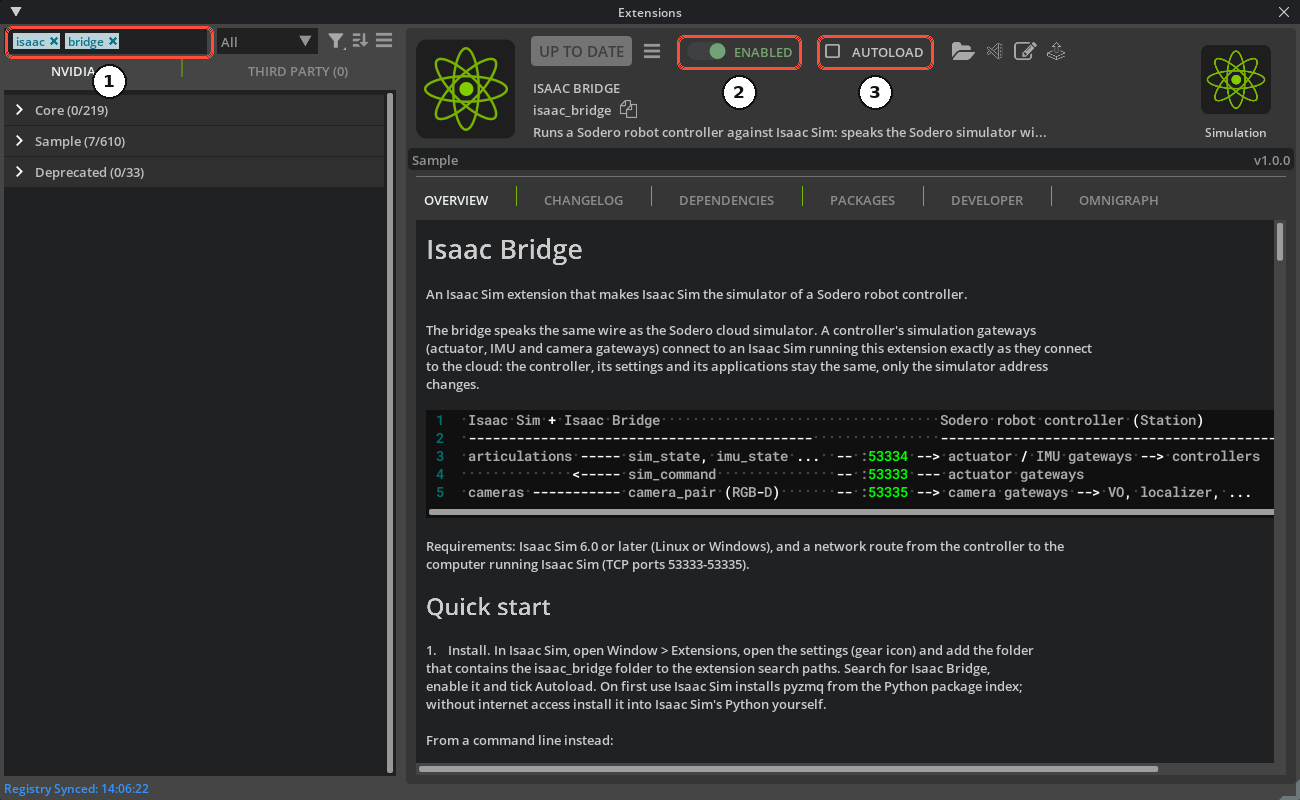
When the extension starts the first time, Isaac Sim installs the Python package pyzmq from the internet. For a computer without internet access, download the package on a computer that has internet access and the same operating system and Isaac Sim version, copy the wheels folder to the Isaac Sim computer, and install it from there. Run the commands in Isaac Sim's installation folder:
You can also start Isaac Sim with the extension from a command line: isaac-sim.sh --ext-folder ~/isaac_extensions --enable isaac_bridge (isaac-sim.bat on Windows).
3. Open the Status Window
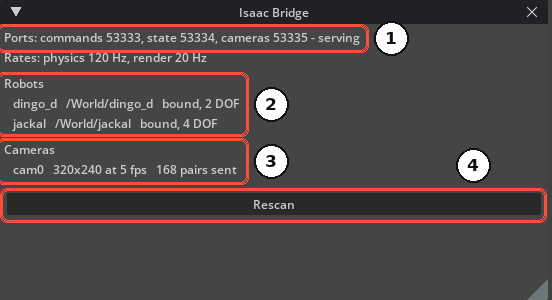
Open Window › Isaac Bridge. The window shows what the bridge serves. Before a scene plays it is mostly empty; press Play in Isaac Sim and it fills in:
| No. | Line | Meaning |
|---|---|---|
| 1 | Ports | The command (53333), state (53334) and camera (53335) ports, and serving when the gateways can connect. The line below shows the scene's physics and render rates. |
| 2 | Robots | Every robot of the scene: its name, its prim path, bound when the bridge controls it, and its number of joints (DOF) |
| 3 | Cameras | Every camera served: name, resolution, frame rate and frames sent |
| 4 | Rescan | Looks for robots and cameras again after you changed the scene while it plays |
The command and state ports (53333, 53334) open at the first Play and stay open until the scene is closed. The camera port (53335) opens at each Play when the scene has cameras, and closes at Stop.
4. Allow the Ports in the Firewall
Stellar X connects to the Isaac Sim computer on TCP ports 53333, 53334 and 53335. Allow them for incoming connections from Stellar X.
The bridge does not authenticate its clients: any computer that reaches these ports can command the robots of the scene. Use it on a trusted network only, and do not open the ports to the internet.
5. Update or Remove
- Update: put the new release into the same
isaac_bridgefolder: rungit fetch --tagsandgit checkout RELEASE_TAGin the folder (a clone of a release tag cannotgit pull), or replace the folder with the new release's ZIP as in step 1. Restart Isaac Sim and check the connection again: the status window shows the ports serving and your robots bound, and each simulation gateway logs Simulator connected. Check Compatibility for the versions this documentation is verified with. - Remove: switch the extension off in Window › Extensions, untick AUTOLOAD, and remove its folder from Extension Search Paths.
The extension's README describes advanced settings, such as camera sizes and rates, which cameras to publish, and the ports.
Next: Prepare the Robot.