

Test Console
The test console moves the actuators of one actuator gateway without a robot controller. You switch the servo on and off, choose a drive mode, and send position, velocity or torque targets to each actuator. Use it to check the wiring, the directions, the gear ratios and the encoder settings of a gateway before a controller drives the robot. EtherCAT Mobile Base › Step 5 shows a complete test of four wheels in velocity mode.
Real motors move. Test one actuator at a time, with small values, with the mechanism free to move and the hardware emergency stop within reach. The console does not limit position targets, and its EMERGENCY STOP does not replace the hardware emergency stop (Stop Controls).
Open the Test Console
The test console is for a gateway that no robot controller uses.
- Stop the robot controllers on the Station. While a Motion Studio node runs, the Station does not open a test and reports that a robot controller is running. Starting a robot controller (Motion Studio, Strider or Articulation) ends every running test.
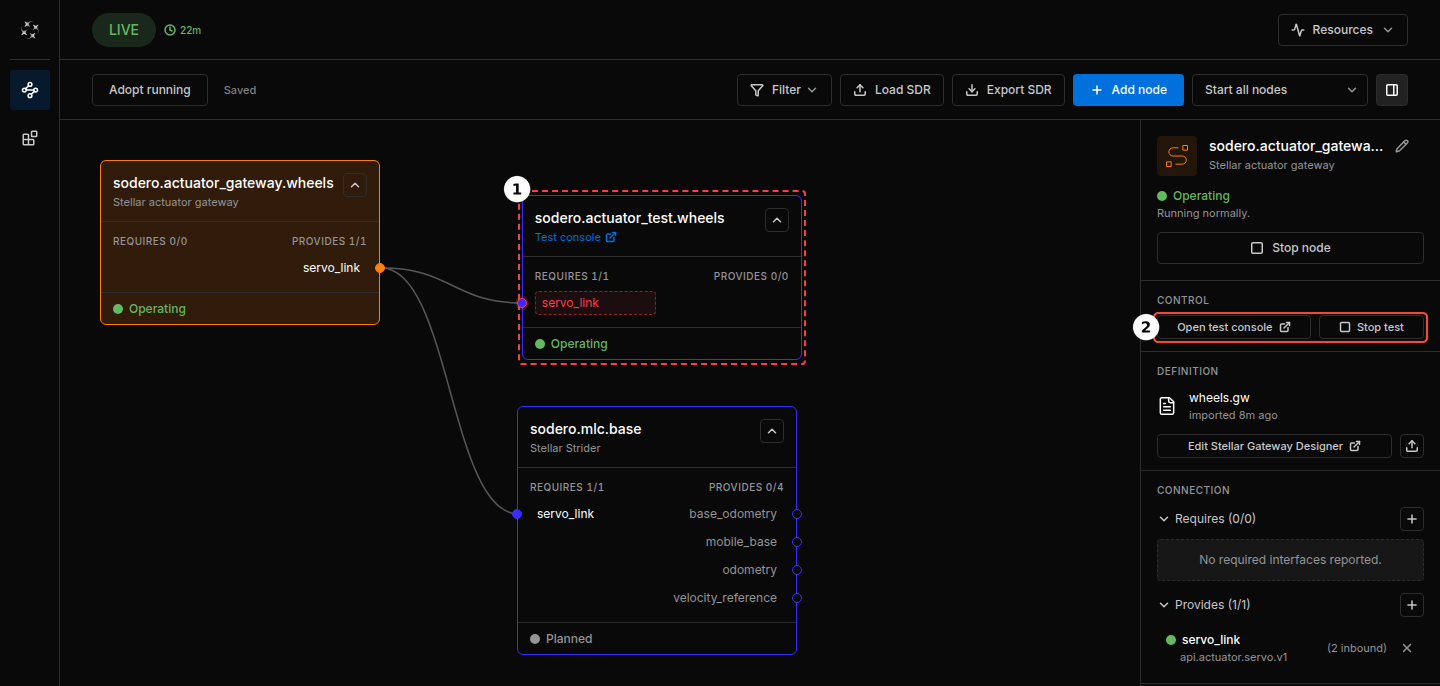
- Select the gateway and click Start node. Test Stellar Gateway in its CONTROL section unlocks when the gateway runs.
- Click Test Stellar Gateway. The console opens in a new browser tab.
- If the console shows Gateway not connected, click Connect. The console always connects with the servo off.
While the test runs, the console is a node of the graph, sodero.actuator_test.NAME (NAME is the gateway's name), connected to the gateway's servo_link. It has a red dashed outline because it is not part of your saved graph; do not add it with Adopt running. The gateway's CONTROL section shows Open test console, which opens the console again, and Stop test.
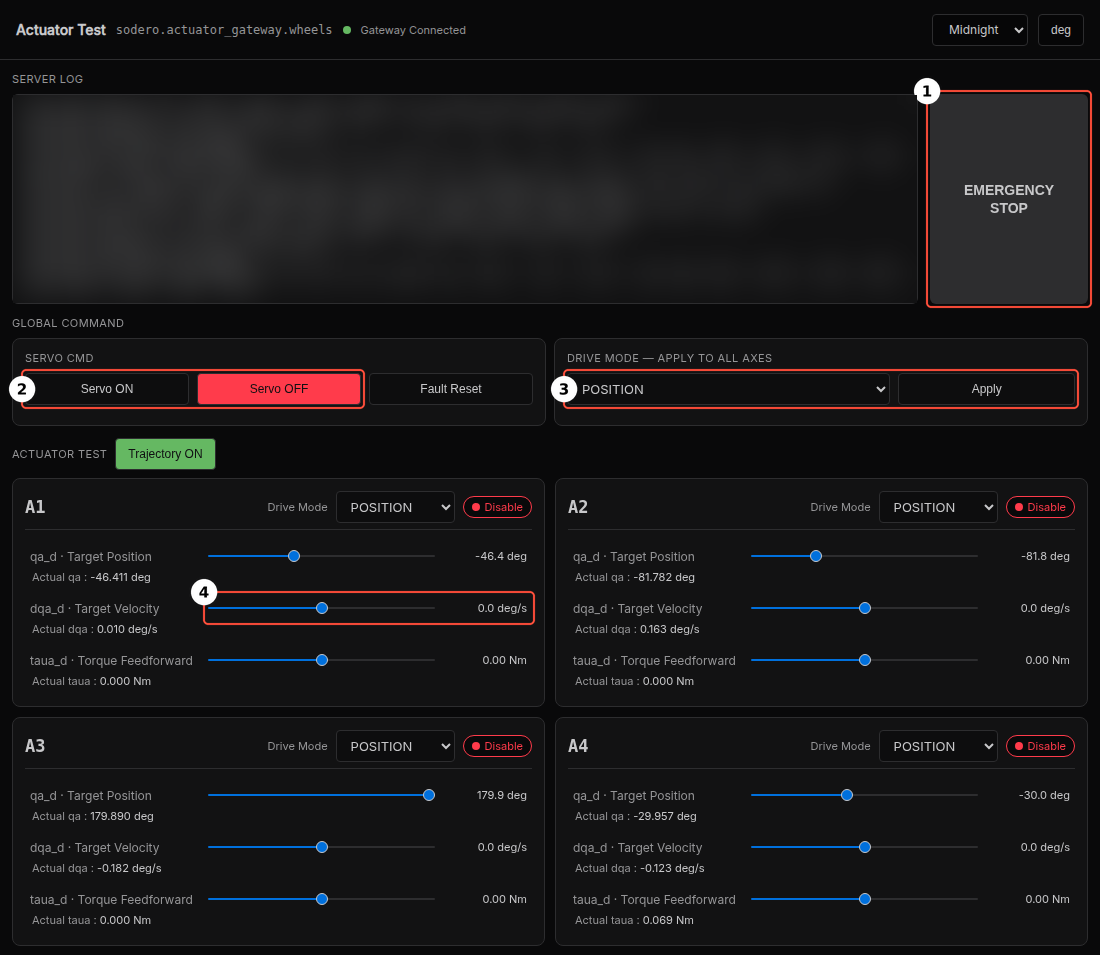
Screen Layout
| Area | Description |
|---|---|
| Top bar | The gateway, and the connection: Gateway Connected, Gateway Disconnected, connecting… or Starting…. The theme menu and the deg / rad button change the display only. |
| SERVER LOG | Messages of the console's own connection to the gateway. The gateway's events, such as drive faults and Servo ON: all N drive(s) enabled., are in the gateway's LOGS › Gateway events on the Station page. |
| EMERGENCY STOP ① | Quick stop of every drive of the gateway, with the servo off. Click it again to release it, then click Servo ON. |
| SERVO CMD ② | Servo ON and Servo OFF for all actuators of the gateway; Fault Reset resets drive faults. After a fault reset, switch the servo off and on again. |
| DRIVE MODE — APPLY TO ALL AXES ③ | The drive mode of every actuator: POSITION, VELOCITY, TORQUE or IMPEDANCE. Apply sets it, sets every position target to the measured position and every velocity and torque target to zero. |
| Trajectory ON | On: a new position target is approached smoothly, in about 1 to 2 s. Off: the target is sent as a step. |
| Actuator cards A1, A2, … | One card per actuator, in the gateway's order (A1 is actuator 1, index 0): its own Drive Mode menu, the servo indicator Enable / Disable, the target sliders and the measured values Actual qa, Actual dqa and Actual taua. |
Targets and measured values are at the joint, after the gear: degrees (or radians), degrees per second and newton-meters.
Drive Modes
| Mode | Command | When the actuator moves |
|---|---|---|
| POSITION | qa_d · Target Position, ±180° | When you release the slider, the actuator moves to the new position. |
| VELOCITY | dqa_d · Target Velocity, ±180 °/s | While you hold the slider. On release the target returns to 0. |
| TORQUE | taua_d · Torque Feedforward, ±10 Nm | While you hold the slider. On release the target returns to 0. |
| IMPEDANCE | qa_d · Target Position, with the stiffness K (Nm/rad, 10 by default) and the damping D (Nm·s/rad, 0.5 by default) | The actuator is pulled toward the target position like a spring with a damper. Enter K and D, then press Enter. |
Only the slider of the actuator's drive mode commands it. The gateway limits velocity and torque commands to the limits of its document; position targets are not limited, so keep them inside the range the mechanism can move. In TORQUE mode nothing limits the speed: use small torques.
When a controller drives the gateway, it chooses the drive mode itself for each command. In the test console you choose it (EtherCAT Gateway › Process Data).
Run a Test
- Choose the drive mode under DRIVE MODE — APPLY TO ALL AXES and click Apply.
- Click Servo ON. Check the gateway's log on the Station page for Servo ON: all N drive(s) enabled. The cards show Enable as soon as the gateway accepts the request, so only the log line confirms that every drive is enabled.
- Move one actuator with a small value, and check its direction and travel against the measured value.
- When you are done, click Servo OFF.
End the Test
- Click Servo OFF in the console.
- Click Stop test in the gateway's CONTROL section. The test node leaves the graph.
Closing the console's tab does not end the test.
The console keeps sending the last command until you change it. If its tab closes or the network drops while an actuator moves, the actuator keeps moving. Open the console again with Open test console and click Servo OFF or EMERGENCY STOP, or press the hardware emergency stop. Stop test without Servo OFF leaves the last command active for up to 3 s, until the gateway's watchdog switches the servo off.
Change the Gateway Document
The Station refuses to save a gateway document while the gateway runs and while its test is open. To change a value found in a test, for example a drive's polarity:
- Click Servo OFF in the console.
- Click Stop test in the gateway's CONTROL section.
- Click Stop node on the gateway.
- Change the document in the Gateway Designer, or import a new
.gw. - Click Start node on the gateway, then Test Stellar Gateway, and test again.
Stop the test before you stop the gateway. While the gateway is stopped, its CONTROL section shows no Stop test, and saves stay refused (Gateway '…' has a test console open). In that case, start the gateway again, click Stop test, and then stop the gateway.
Troubleshooting
| Symptom | Cause and fix |
|---|---|
| The Station refuses to open the test because a robot controller is running, or the console shows A controller is already running | A Motion Studio node runs. Stop it, then click Connect in the console. |
| The console shows Gateway not connected | Click Connect. If it does not connect, check that the gateway is Operating. |
| The cards show Enable, but the gateway's log shows Servo ON failed | A drive did not enable. Check its STO and enable inputs, the emergency stop and its main power, then click Servo OFF and Servo ON. |
| An actuator does not react to a slider | The slider does not belong to the actuator's drive mode, or the servo is off. |
| After EMERGENCY STOP is released, a drive does not enable again | Click Servo ON. If the drive still does not enable, click Stop test, stop and start the gateway, and open the test again. |
| The test ended by itself | A robot controller was started on the Station. |