

Modules
A module is a program packaged to run on the Station as a node. The built-in modules (gateways, controllers, navigation) come with Stellar X. You can install your own modules to add robot behaviors, task logic or custom device interfaces; they run next to the built-in ones and use the same interfaces.
This page installs, updates and removes module packages. To build a package yourself, see Create Custom Modules.
1. The Modules Page
Click Modules in the left sidebar. The page lists the built-in modules and the module packages you installed, including modules that no node uses yet.
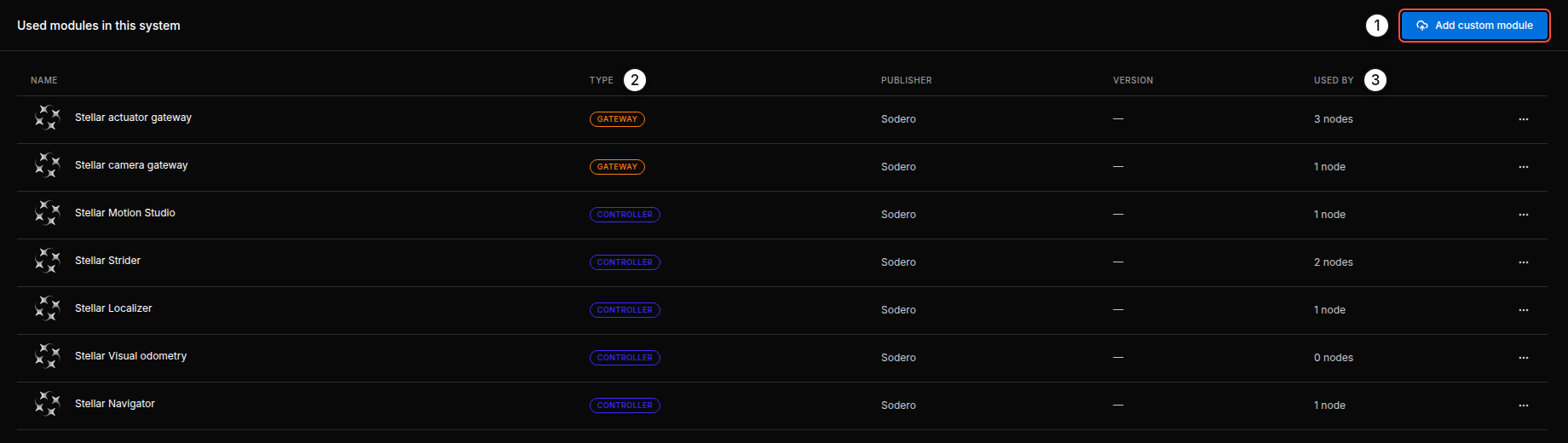
| No. | Item | Description |
|---|---|---|
| 1 | Add custom module | Installs a module package from your PC (Install a Module) |
| 2 | TYPE | Gateway, Controller, Compound or Application |
| 3 | USED BY | How many nodes of the graph use the module |
The ⋯ menu of a row offers Module info and, for your own modules, Remove module.
2. Install a Module
- Click Add custom module.
- Drop the package (
.tar.gz) or click Choose file, then click Add module.
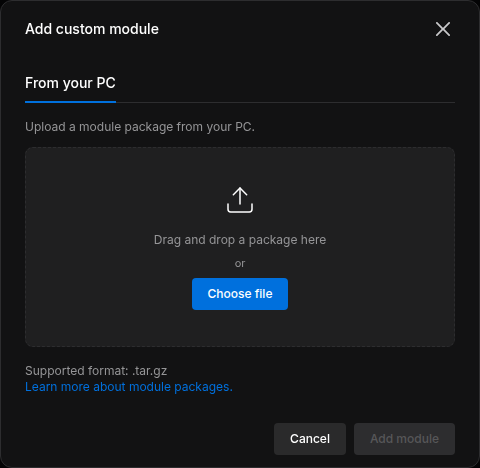
- Uploading a package with the same name replaces the installed version. Nodes that use it keep their connections; stop and start them to run the new version.
- Built-in modules cannot be replaced.
Add and Start the Module's Node
- Click Add node and choose the type that the module declares: Gateway, Controller, Compound or Application (the
rolein itssubsystem.yaml:gateway,component,compoundorapp). Your module appears in the list with the CUSTOM badge. The status module of Create Custom Modules, for example, is acomponentand appears under Controller. - Connect its required ports, for example to a Strider's
mobile_baseor a Motion Studio'smanipulator. - Right-click the node and choose Start node, or use Start all nodes.
If the module has its own web UI, a link with the module's name appears on its node card while it runs. Its logs appear in the inspector's LOGS section.
Remove a Module
Stop and delete the nodes that use the module, then choose Remove module in the ⋯ menu of its row.