

Running Nodes
Nodes run only when you start them. This page covers starting and stopping nodes, reading their state and logs, and opening the controller UIs.
Real hardware moves. Starting a gateway or controller that drives real motors can energize them. Before you start such nodes, make sure the robot's surroundings are clear and someone can reach the emergency stop (Stop Controls).
1. Start and Stop One Node
- Select the node and click Start node (or Stop node) in the inspector, or
- right-click the node and choose Start node / Stop node.
Start a robot's nodes in dependency order: gateway first, then its controller, then nodes that use the controller (navigation, applications). Stop them in the reverse order.
A controller refuses to start until it has a document and its servo_link is connected:
- Import a robot file (.sdd/.sddm/.sdda) first.
- Connect servo_link to a gateway before starting it.
2. Start All Nodes
The Start all nodes button starts every node that is down, in dependency order: gateways → controllers → compounds → applications. Its menu also offers Stop all nodes, which stops consumers first. Once every node is up, the button itself reads Stop all nodes.
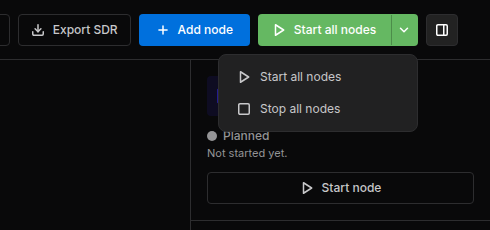
- While a run is in progress, a banner shows its progress (Starting all nodes… or Stopping all nodes…). To cancel, click Cancel on the banner, or the button, which reads Cancel start or Cancel stop during the run. Nodes already started stay up when you cancel.
- The run continues even if you close the browser. The page shows its progress again when you reopen it.
- The result appears as a banner, for example Runtime topology is up.
Start all nodes starts every node of the graph, including nodes that drive real hardware. When the graph contains hardware you do not want to run, start the nodes one by one.
After Stellar X restarts, the Station comes back with its saved graph, documents and settings, but no node is started. Start the nodes again when you need them.
3. Node States
The footer of each node card and the inspector header show the node's state.
| State | Meaning |
|---|---|
| Planned | Saved in the graph, not started yet |
| Booting / Starting | Starting up |
| Waiting binding | A required port has no connection yet |
| Waiting target | A connected node is not ready yet |
| Ready | Started and waiting to operate |
| Operating | Running normally |
| Running | The process is up |
| Paused | Paused |
| Degraded | Running with reduced performance |
| Disconnected | Heartbeat lost |
| Fault | The node reported a fault. The inspector and the node log show the reason. |
| Error / Failed | The node reported an error. The inspector shows the reason. |
| Stopped | The process ended |
The dot next to the state is green for Ready, Running and Operating, yellow while waiting, red for errors and grey otherwise. Problems are also counted in the N issues chip of the toolbar.
4. Open the Controller UIs
When a node runs, its tools unlock, in the inspector's CONTROL section or as a link on the node card:
| Node | Button | Opens |
|---|---|---|
| Motion Studio | Stellar Motion Studio | Motion Studio for the manipulator |
| Strider | Strider | Strider for the mobile base |
| Articulation | Articulation | Articulation for joint control |
| Navigator | Strider link on the card | Strider's Navigation page |
| Camera gateway | Camera view link on the card | The camera image |
| Actuator gateway | Test Stellar Gateway | The Test Console, which moves single actuators without a controller |
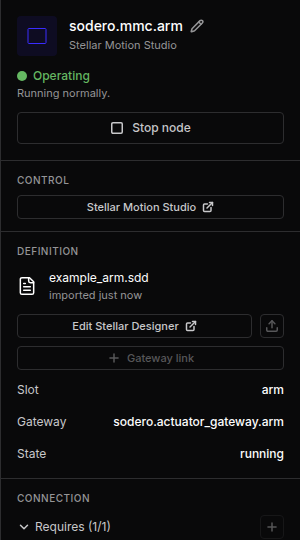
Each UI opens in a new browser tab. You can keep several open, one per robot.
Test Stellar Gateway is for a gateway that no robot controller uses. Stop the robot controllers first: the Station does not open a test while a Motion Studio node runs, and starting a robot controller (Motion Studio, Strider or Articulation) ends every running test.
5. Logs
The LOGS section of the inspector shows the node's recent output. Choose the stream in the drop-down and click Refresh:
| Stream | Contents |
|---|---|
| Gateway events | Gateway status and problems, each with a hint about what to check (gateways and their controllers) |
| Standard output / Standard error | The program's output |
| Node log | The node's own log file |
| Process log | Start and stop of the process |
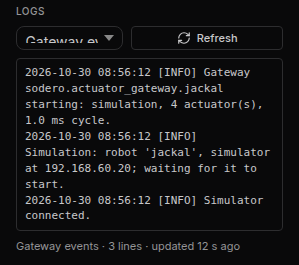
Tip: When a node fails, read Gateway events of its gateway first. Most start-up problems (no simulator, wrong robot name, no EtherCAT link, drive faults) are reported there with a hint.
6. Troubleshooting
| Symptom | What to check |
|---|---|
| A controller stays in Waiting binding | Its servo_link (or another required port) is not connected |
| A simulation gateway runs but the robot does not move | The gateway's Robot name must equal the articulation prim name in Isaac Sim; Isaac Sim must be playing; the Sim host must be the Isaac Sim computer (Simulation Gateway) |
| An EtherCAT gateway fails to start | Cable to the first drive's IN port, drive power, number of drives (EtherCAT Gateway) |
| Process stopped during topology startup | A node stopped right after Start all nodes. Read its logs, fix the cause, then start again |
| Changes to a document are refused | Stop the node first. A gateway document is also refused while the gateway's test is open: click Stop test before you stop the gateway (Test Console). |