

Connect to Stellar Station
With Isaac Bridge installed and the robot prepared, point the Station's gateways at Isaac Sim and drive the robot.
1. Play the Scene
- Open the scene in Isaac Sim and press Play.
- Open Window › Isaac Bridge and check that the ports are serving and your robot is bound.
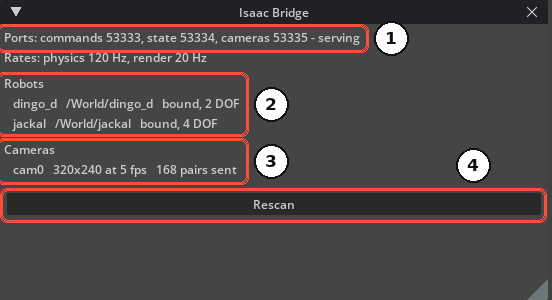
2. Set the Gateways on the Station
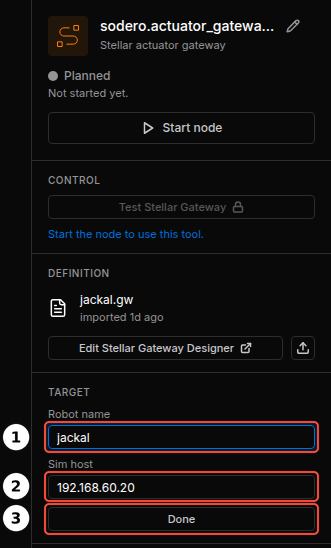
Set the Station nodes to match Isaac Sim. For a simulation gateway, select it, click Change in its TARGET section, enter Robot name ① and Sim host ②, and click Done ③. The values apply when the gateway starts next time.
| Isaac Sim | Station node | Field |
|---|---|---|
Robot jackal |
Actuator gateway (simulation) | TARGET › Robot name jackal |
| The Isaac Sim computer | Actuator gateway (simulation) | TARGET › Sim host: the computer's IP address |
Camera cam0 |
Camera gateway | Camera name cam0, Camera host: the computer's IP address, Port 53335 |
Robot jackal (with an IMU) |
IMU gateway | Robot in World jackal |
The IMU gateway has no address field: it connects to the simulator address set for the controller, which must be the Isaac Sim computer. When a simulator address is set, it also replaces Sim host at every start of a simulation gateway. The gateway's log shows the address in use (Addresses Set for the Controller).
The Robot name on the Station must be exactly the robot's prim name in Isaac Sim. Names are case-sensitive. If they differ, the gateway keeps waiting and the robot never moves.
How to create the gateways and their documents: Simulation Gateway, Cameras and IMUs.
3. Start and Drive
- Start the gateways, then the controllers (Running Nodes).
- Each simulation gateway logs Simulator connected.
- Open the controller's UI, switch the servo on, and jog: Strider for mobile bases, Motion Studio for manipulators.
4. Stop, Pause and Play
The gateways treat Isaac Sim like a power supply of real drives:
| In Isaac Sim | Result |
|---|---|
| Pause | The robots stay where they are. The gateways see the simulator stop and switch the servo off; switch it on again after you resume. |
| Stop, then Play | A new session: the robots start again at their authored pose, as after a power cycle. Switch the servo on again. |
| Editing the scene while it plays | Takes effect at the next Play, or click Rescan in the Isaac Bridge window |
| Closing Isaac Sim and starting it again | The gateways lose the simulator and switch the servo off, and the controllers stop the robots. The gateways reconnect by themselves: when the scene plays again, wait until the gateway logs Simulator connected again; turn the servo on to continue., then switch the servo on. |
After the simulation restarts, the robot is back at its starting pose, but the Localizer may still hold its last pose. If Strider's Navigation page shows a wrong pose, set the initial pose again.
5. Several Robots
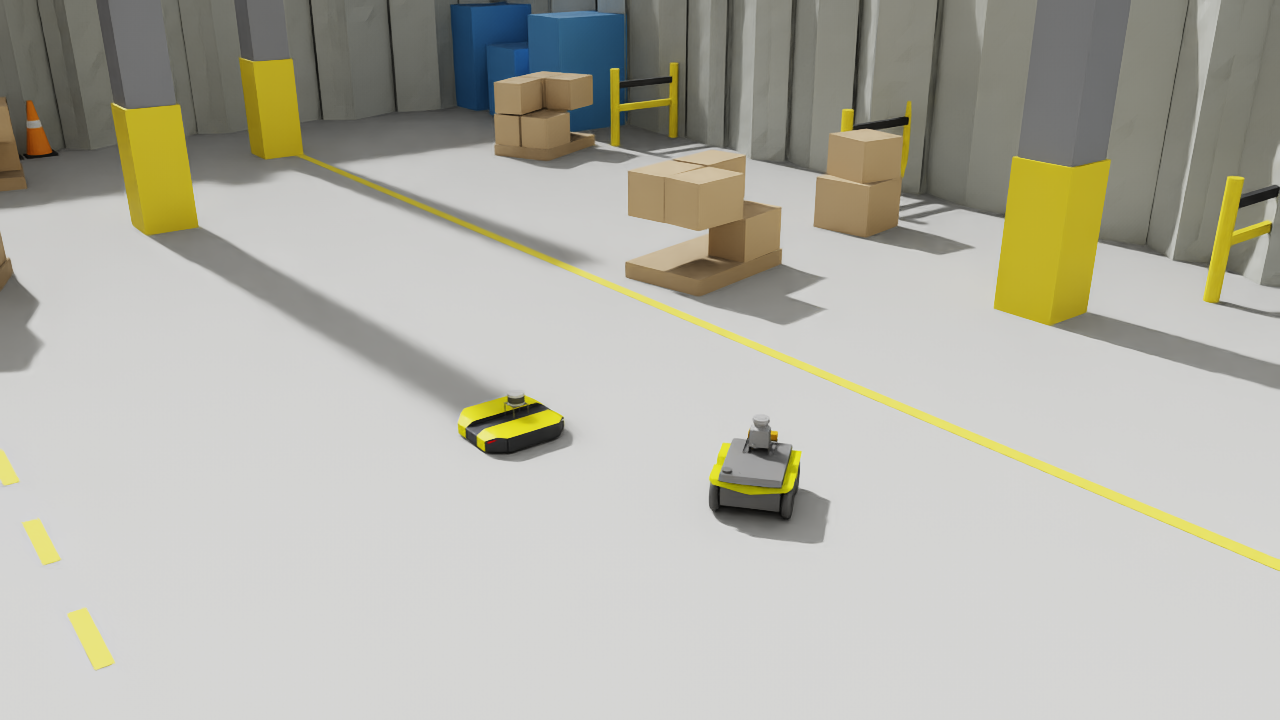
One scene can hold several robots. Add one gateway (and controller) per robot on the Station, each with its own Robot name. All gateways use the same Isaac Sim computer and ports; the status window lists every robot it serves.
A robot can also be driven by several gateways, for example an arm and its gripper. Each gateway drives its own range of joints, set by its DOF offset (Gateway Designer).
6. Real-Time Performance
The simulation runs in real time while the computer keeps up with the render rate. The controllers follow the simulation's time, but camera-based localization runs on wall-clock time, so a simulation that runs slower than real time degrades localization.
- Use moderate camera sizes and frame rates; each camera is rendered in addition to the viewport.
- Close viewports and windows you do not need.
- Do not run other heavy GPU programs (such as training) on the same computer at the same time.
- Keep the clocks of both computers synchronized (NTP). The camera gateway accepts frames at most 20 ms ahead of and 2 s behind its own clock. If you cannot synchronize them, start Isaac Sim with
RC_CAMERA_CAPTURE_TIME=0: the camera gateway then stamps each frame when it arrives.
7. Troubleshooting
| Symptom | Cause and fix |
|---|---|
| The status window does not show serving | Another program (for example a second Isaac Sim) holds ports 53333–53335. Close it and press Play again. |
| Gateway log stays at waiting for it to start | Isaac Sim is not playing, Sim host (or the simulator address set for the controller) is not the Isaac Sim computer, or a firewall blocks the ports (Install Isaac Bridge) |
| Isaac Sim console: 'sim_command' for 'X', which is no robot or tracked object of this stage | The gateway's Robot name X is not the prim name of a robot in the scene |
| The Isaac Bridge window does not list the robot | The prim has no PhysX articulation root, or another robot in the scene has the same prim name (Prepare the Robot) |
| The robot is listed but never bound | It is not a valid PhysX articulation (check the Isaac Sim console) |
| Camera gateway: publishes frames of camera(s) … but none of camera … | The camera gateway's Camera name is not the camera's prim name |
| Camera gateway: frames stale or with capture times that do not match | The clocks of the two computers differ. Synchronize them, or start Isaac Sim with RC_CAMERA_CAPTURE_TIME=0 so that the camera gateway uses arrival times. |
| The robot moves too fast or too slow | The computer cannot keep up with the render rate. Lower camera sizes or rates, or close viewports. |
The Isaac Sim console shows the bridge's messages, prefixed with the robot or camera name.