

Cameras and IMUs
Stellar Station has built-in gateways for the two sensors its navigation and walking controllers use: an RGB-D camera and an IMU. In simulation they read the cameras and IMUs of Isaac Sim. For real sensors, a small computer next to the sensors runs the Device Bridge, which serves real devices exactly as Isaac Sim serves simulated ones.
flowchart TB
    I["Isaac Sim + Isaac Bridge<br>(simulation)"]
    DB["Device Bridge<br>(real camera / IMU)"]
    I -- "TCP 53335" --> CG["Camera gateway"]
    DB -- "TCP 53335" --> CG
    I -- "TCP 53334" --> IG["IMU gateway"]
    DB -- "TCP 53334" --> IG
    CG --> VO["Visual odometry"]
    CG --> LOC["Localizer"]
    IG --> VO
IG --> LEG["Legged locomotion"]| Your sensor | Use |
|---|---|
| A camera or IMU in Isaac Sim | Camera gateway / IMU gateway, connected to Isaac Sim (this page) |
| A real RGB-D camera (e.g. Intel RealSense) or USB IMU | The Device Bridge on a sensor computer, plus the Camera gateway / IMU gateway |
| Any other device (digital I/O, force sensors, custom hardware) | Your own gateway module (Create Custom Modules) |
1. Camera Gateway
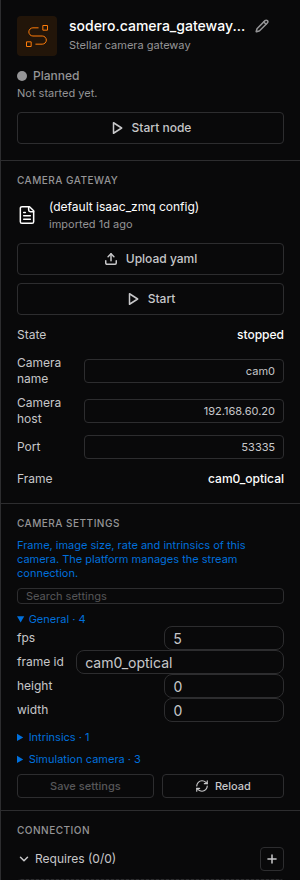
Add the node with Add node › Gateway › Camera gateway and a name such as cam0. Nodes that use the camera connect to its camera port.
Connection
In the CAMERA GATEWAY section of the inspector:
| Field | Value |
|---|---|
| Camera name | The name of the camera: in Isaac Sim, the camera prim's name (for example cam0 for /World/jackal/links/base_link/cam0); with the Device Bridge, the bridge's robot name |
| Camera host | The address of the Isaac Sim computer or the sensor computer. When a camera address is set for the controller, the field is greyed out and the gateway uses that address at every start, even if an uploaded YAML names another (Addresses Set for the Controller). |
| Port | 53335 |
Camera Settings
Stop the camera node to enable its settings, change the values, click Save settings, then start it again. If navigation is already running, cancel its active goal and stop Navigator, Localizer and the camera in that order; restart the camera, Localizer and Navigator after saving (full procedure).
Default field of view is 60°
A new camera gateway starts with horizontal fov deg = 60, fps = 15 and width = height = 0 (automatic size detection). Match the field of view to the source camera before using localization. For the Jackal warehouse tutorial, change the field of view to 90 and fps to 5, keeping width and height at 0. A different camera needs its own calibration; do not apply 90° to every camera.
| Setting | Meaning |
|---|---|
| fps | Expected frame rate (the source decides the actual rate) |
| frame id | Name of the camera's optical frame, at most 15 characters, for example cam0_optical. The map bundle's extrinsics refer to this name. |
| width, height | Image size; 0 takes it from the frames |
| Intrinsics | fov mode with the horizontal field of view in degrees, or manual mode with fx, fy, cx, cy in pixels. A new camera gateway offers only the field of view; load manual values with Upload yaml (Device Bridge › Camera). |
| Simulation camera | Connection timeouts |
Isaac Sim renders cameras with square pixels and the principal point at the image center, so fov mode with the camera's horizontal field of view is exact. Isaac Bridge prints each camera's field of view in the Isaac Sim console when the scene plays.
See the Image
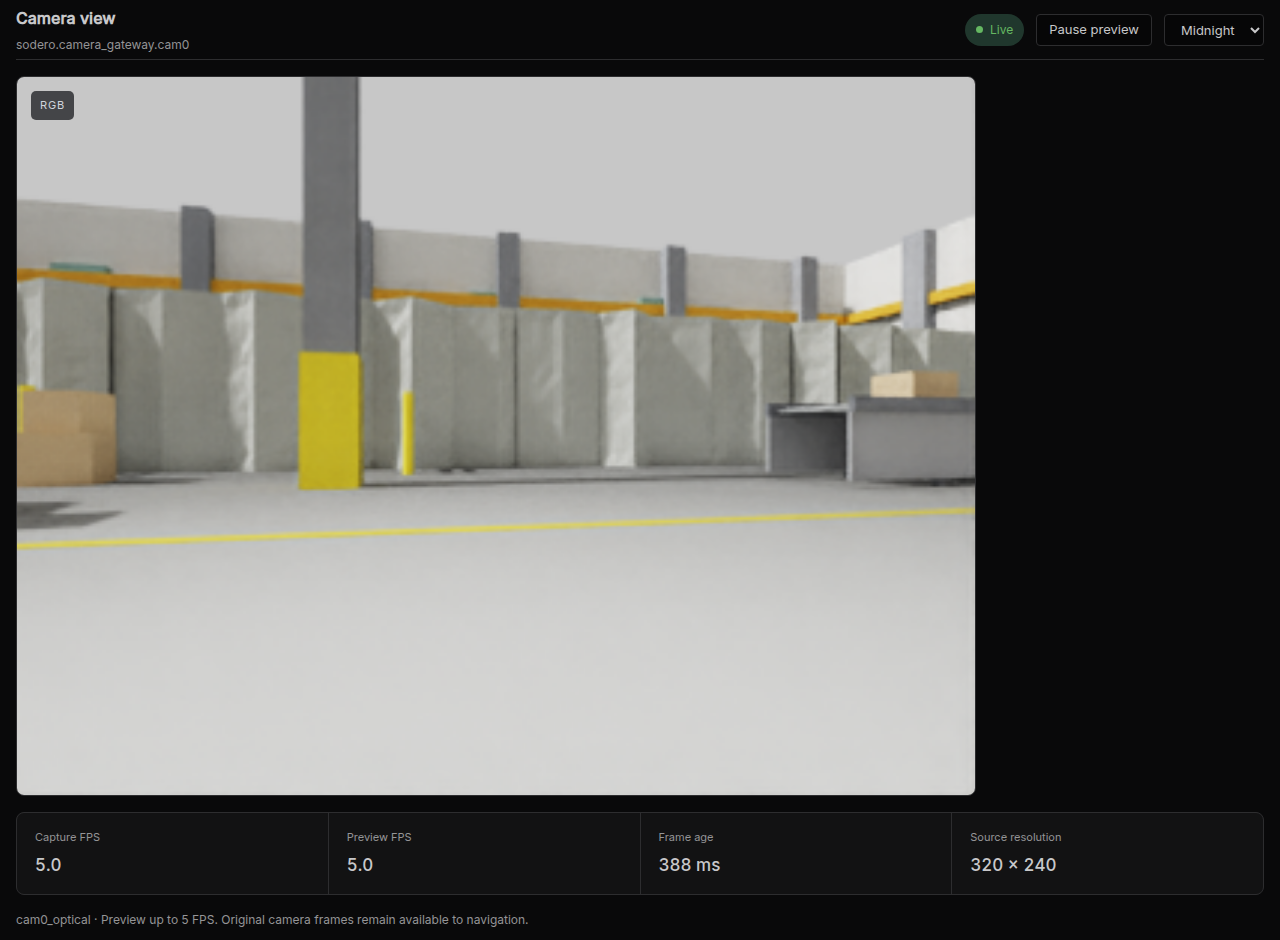
While the camera gateway runs, click Camera view on its node card:
2. IMU Gateway
Add the node with Add node › Gateway › IMU gateway. Nodes that use the IMU connect to its ports.
| Setting | Meaning |
|---|---|
| Robot in World | The robot whose IMU to read: its articulation prim name in Isaac Sim, or the Device Bridge's robot name |
| Sample rate (Hz) | IMU sample rate (default 250) |
| Sensor event rate (Hz) | Rate of the published IMU events (default 20) |
The IMU gateway has no address field: it connects to the simulator address set for the controller, which must be the Isaac Sim computer or the sensor computer of the Device Bridge (Addresses Set for the Controller).
In Isaac Sim, a robot publishes IMU data when its robot prim names the link that carries the IMU in rc:imuLink (Prepare the Robot › IMU).
3. Mounting: Where the Sensor Sits
Sensor data is in the sensor's own frame. Where the camera is mounted on the robot (its position and orientation relative to the robot's base_link) is part of the map bundle's extrinsics, used by the Localizer (Load and Configure a Map). Measure the mounting on the robot; do not rotate the data in the source.
4. Troubleshooting
| Symptom | Cause and fix |
|---|---|
| Camera log: Waiting for simulator at …:53335 (World not running?) | Isaac Sim is not playing, the camera host is wrong, or a firewall blocks port 53335 |
| Camera log: …publishes frames of camera(s) … but none of camera 'cam0' | Camera name does not match a camera in the scene |
| Camera log: Frames … are stale or carry capture times that do not match this Station's clock | The clocks of the two computers differ. Synchronize them (NTP), or stop sending capture times at the source (Isaac Sim: start it with RC_CAMERA_CAPTURE_TIME=0; Device Bridge: send_capture_time: false) so that the Station uses arrival times. |
| Camera image is visible, but the Localizer remains Initializing, Relocalizing or Lost | Check horizontal fov deg against the source camera. A new gateway defaults to 60°, while the Jackal warehouse example uses 90°. Incorrect intrinsics distort the depth points used to match the map, even when the image looks normal. Follow the settings correction procedure, then check the initial pose if needed. |
| Camera view is black or frozen | The camera prim looks at nothing, or the scene is paused |