

Design Documents
Gateways and robot controllers are configured by design documents. You create them in Stellar Designer, load them into nodes on the Station, and edit them later directly from the node.
| File | Node | Edited with |
|---|---|---|
.gw |
Actuator gateway | Stellar Gateway Designer (Gateway Designer) |
.sdd |
Motion Studio | Stellar Designer, manipulator editor (Manipulator) |
.sddm |
Strider | Stellar Designer, mobile robot editor (Mobile Robot) |
.sdda |
Articulation | Stellar Designer, articulation editor (Articulated Robot) |
Cameras, IMUs, visual odometry, the localizer and the navigator have no design document. They have settings that you edit in the node's inspector (see Settings of Sensor and Navigation Nodes).
Every new gateway or controller node starts with an empty document of its type, so you can either import a finished file or build the document from scratch with Edit Stellar Designer (Edit Stellar Gateway Designer for gateways).
1. Import a Document
- Stop the node if it is running.
- Select the node. In the inspector's DEFINITION section, click the upload icon (Import .gw, Import .sdd, Import .sddm or Import .sdda).
- On From your PC ①, drop the file or click Choose file. The chosen file appears ②; click Import ③.
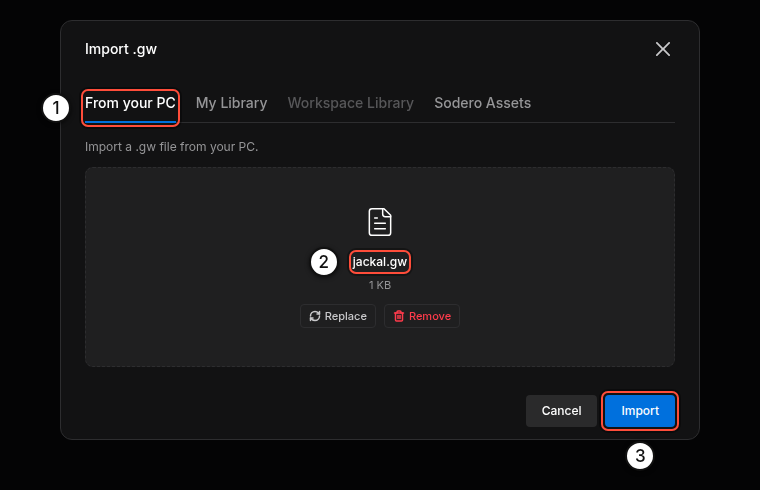
The DEFINITION section then shows the file name and imported just now.
An import replaces the whole document of the node. Export the Station first if you may need the previous version (Backup and Restore).
My Library, Workspace Library and Sodero Assets list files stored in Sodero Cloud. They need a Sodero account and Internet access. On a controller without Internet access, use From your PC.
2. Edit a Document in Stellar Designer
Click Edit Stellar Designer (controllers) or Edit Stellar Gateway Designer (gateways) in the DEFINITION section. Stellar Designer opens in a new browser tab with the node's document. The breadcrumb at the top shows the node and the file, for example sodero.mlc.jackal / jackal.sddm.
- Stop the node before you edit its document. While the node runs, the Station refuses to save.
- Your edits are saved back to the node automatically. In an Articulation document, click Save configuration.
- The arrow at the left of the breadcrumb returns to the Station.
The editors are described in Stellar Designer and Gateway Designer.
3. Point a Simulation Gateway at Its Robot
A simulation gateway also needs to know which robot in Isaac Sim it drives and where Isaac Sim runs. Select the gateway and click Change in its TARGET section:
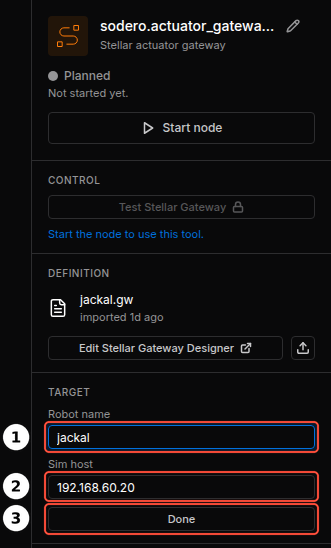
| No. | Field | Value |
|---|---|---|
| 1 | Robot name | The name of the robot's articulation prim in the Isaac Sim scene, for example jackal for /World/jackal |
| 2 | Sim host | The IP address of the computer that runs Isaac Sim. A simulator address set for the controller replaces it (Addresses Set for the Controller). |
| 3 | Done | Saves both values. They take effect when the gateway starts next time. |
The robot name must match exactly. The gateway finds its robot in Isaac Sim by name only. If the names differ, the gateway keeps waiting for the simulator and the robot never moves. See Simulation Gateway.
4. Settings of Sensor and Navigation Nodes
Camera gateways, IMU gateways, visual odometry, the localizer, the navigator and legged locomotion are configured with settings forms in their inspector, and on a full-page Settings view that opens from the node card.
- Stop the node, change the values, then click Save settings. Reload discards unsaved changes.
- The localizer and the navigator share their settings with the map bundle. They can be saved only while the localizer, the navigator and visual odometry are stopped.
- The localizer's map is loaded with Upload .nav (Load and Configure a Map). The navigator uses the same bundle.
The same settings can be read and written from the SSH workspace with sodero navigation get and sodero navigation apply (sodero CLI).
5. Rules for Documents
- A Motion Studio, Strider or Articulation document names the gateway it drives and the gateway's actuator indices (zero-based). Connect the node's
servo_linkto that same gateway. - A simulation gateway document has
hardware.type: simulation. Its robot name and Sim host are set on the node (section 3). - The gateway must have enough actuators: the controller document maps every actuator it uses to a joint or wheel, and the gateway must provide at least that many.
- Connect one robot controller to a gateway. To drive one manipulator through several gateways, use + Gateway link on its Motion Studio node.