

Simulation Gateway
A simulation gateway is an actuator gateway of type Isaac Sim. Instead of a fieldbus it drives the joints of a robot in NVIDIA Isaac Sim, through the Isaac Bridge extension on the Isaac Sim computer. The controller connected to it (Motion Studio, Strider, Articulation) uses the same interface as with real motors, so its document and your applications carry over to the real robot. The real robot still needs its own checks: motor directions, gear ratios, encoders, limits and sensors.
flowchart TB
    subgraph SX ["Stellar X"]
        C["Controller"] -- servo_link --> G["Simulation gateway<br>Robot name: jackal"]
    end
    subgraph PC ["Isaac Sim computer"]
        B["Isaac Bridge"] --> R["/World/jackal<br>articulation"]
    end
    G -- "commands · TCP 53333" --> B
    B -- "joint states · TCP 53334" --> G
1. The Name Rule
The gateway's Robot name must be exactly the name of the robot's articulation prim in the Isaac Sim scene.
Isaac Bridge serves every articulation in the scene under the name of its prim: the robot at /World/jackal is served as jackal. A simulation gateway subscribes to the robot whose name equals its Robot name. If the names differ (Jackal vs. jackal, jackal_1 vs. jackal), the gateway never receives a joint state, keeps waiting and the robot never moves.
| Station (gateway) | Isaac Sim (scene) |
|---|---|
Robot name jackal |
Articulation prim /World/jackal |
| Actuator 1, 2, 3, 4 (indices 0–3) | The robot's 1st, 2nd, 3rd and 4th movable joint (revolute or prismatic), in USD order. Joints marked rc:passive are skipped (Prepare the Robot › Joints and Drives). |
| DOF offset 0 | The gateway starts at the robot's first movable joint (Gateway Designer › Simulation Gateways) |
Use names with lowercase letters, digits and _, starting with a letter. Every robot in the scene must have a unique prim name.
2. Create a Simulation Gateway
- Add an Actuator gateway node on the Station.
- Either import a simulation
.gw(Import .gw), or click Edit Stellar Gateway Designer, choose Isaac Sim, and add one actuator per joint of the robot (Gateway Designer). -
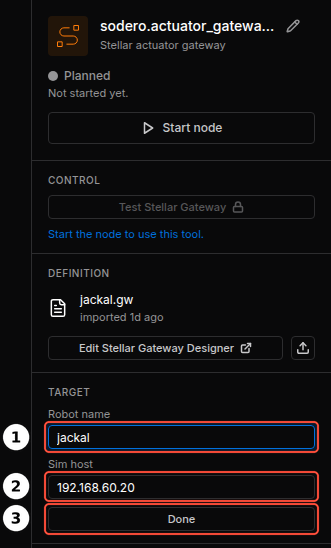
In the node's TARGET section, click Change and set:
- Robot name ①: the articulation prim name (see the rule above).
- Sim host ②: the IP address of the Isaac Sim computer.
Click Done ③. Changes take effect when the gateway starts next time.
Addresses Set for the Controller
Sodero can set two addresses for a controller on request: a simulator address and a camera address. They point to the Isaac Sim computer, or to the Device Bridge computer for real sensors. When an address is set, the gateways use it at every start:
| Address | Used by |
|---|---|
| Simulator address | Simulation gateways, in place of Sim host. The IMU gateway, which has no address field, connects only to this address; without it, the IMU gateway does not start. |
| Camera address | Camera gateways, in place of Camera host. The Camera host field is then greyed out and shows this address. |
Each gateway's log shows the address it uses, for example Simulation: robot 'jackal', simulator at 192.168.60.20; waiting for it to start. (Check the Connection). To have an address set or changed for your controller, contact Sodero.
3. Check the Connection
Start Isaac Sim's scene (Play), then start the gateway. Its Gateway events log shows:
Simulation: robot 'jackal', simulator at 192.168.60.20; waiting for it to start.
Simulator connected.
| Log message | Meaning |
|---|---|
| waiting for it to start | No joint state arrives yet. Normal until Isaac Sim plays. If it stays, see Troubleshooting. |
| Simulator connected. | Joint states arrive; the controller can switch the servo on. |
| Simulator connection lost; servo turned OFF. | The simulation stopped or the network dropped. The gateway reconnects by itself. |
| Simulator connected again; turn the servo on to continue. | Switch the servo on again in the controller UI. |
When the simulation is stopped and played again, Isaac Sim puts the robot back at its starting pose, and the controller's servo is off until you switch it on again.
4. Several Robots and Shared Robots
- Several robots: add one gateway (and controller) per robot, each with its own Robot name. All of them use the same Isaac Sim computer and ports.
- One robot, several gateways: an arm and its gripper can be driven by two gateways on the same articulation, each with its own DOF offset (Gateway Designer › Simulation Gateways).
5. Troubleshooting
| Symptom | Cause and fix |
|---|---|
| The log stays at waiting for it to start | Isaac Sim is not playing; the address in the log line is not the Isaac Sim computer (Sim host, or the simulator address set for the controller); its firewall blocks TCP 53333–53334; Robot name does not match the prim name |
| The Isaac Bridge window does not list the robot | The prim has no PhysX articulation root, or another robot in the scene has the same prim name (Prepare the Robot › Check the Robot) |
| The Isaac Bridge window shows the robot as not bound | The robot is not a valid PhysX articulation. Check the Isaac Sim console (Prepare the Robot › Check the Robot). |
| Servo on is accepted but the robot does not move | Strider: the drive mode is not Twist. Motion Studio: the joint count of the scene differs from the gateway's actuators. |
| A wheel or joint turns the wrong way | The joint order or axis in the scene differs from the document. Fix the scene or the document; do not invert signs elsewhere. |
| Motion looks slow, or localization lags | The simulation runs slower than real time: controllers follow simulation time, but camera-based localization runs on wall-clock time. Lower the scene's physics and render rates, close other GPU programs (Real-Time Performance). |